
That's incredible! Google's Gemini crams an N8N directly into it. Opal has been integrated into the Gem function, enabling natural language workflow creation. Anyone can now create their own AI applications with a user interface and share them with other Gemini users without consuming your credit limit. This turned my screen time visualization into a webpage. One-click generation of posters, text, and podcasts. I'll also write a tutorial here 👇
First, there's the entry point. Just find the "Explore Gem" option in the sidebar and go in. Once inside, you'll see a completely new Gem experiment in addition to the previous Gem interface and settings. Clicking "New Gem" will take you to the new Gem creation interface.


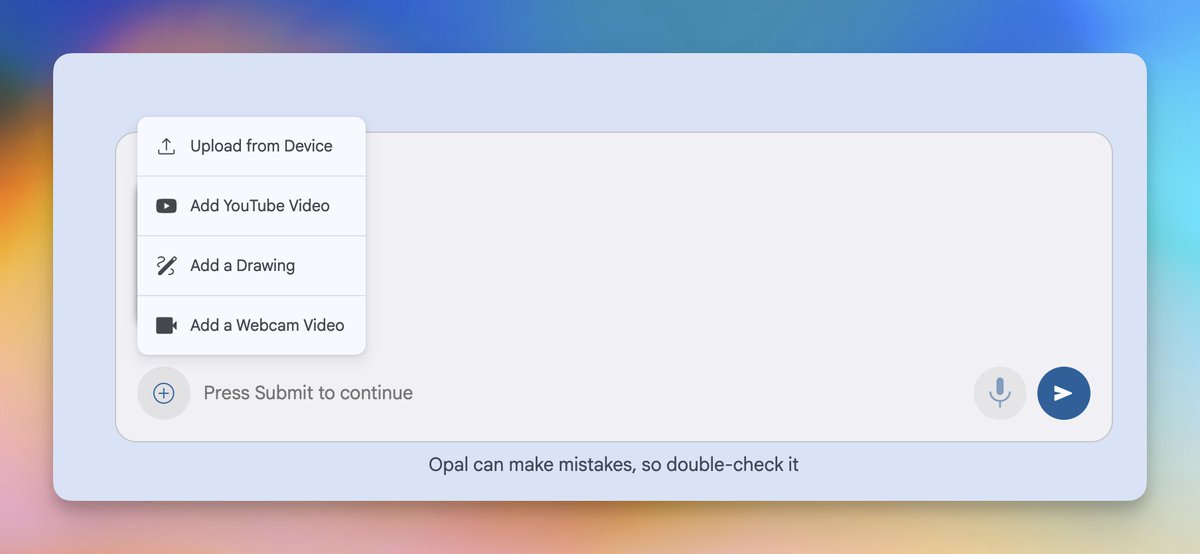
Once you enter the creation page, there's a very simple input box; you can simply tell them what you want to do. After pressing Enter, the Gem application will begin to be built. The progress will be displayed on the right and it will usually be completed quickly. You can then test the Gem you just generated on the right.


If you're too lmp.weixin.qq.com/s/KtMFEj4eyMUl…ction, you can read the full article here: https://t.co/186v3C0kp0

The new Gem supports a wide range of formats, including common files, YouTube videos, and even videos of web page operations and doodles. I uploaded my training data for testing, and the results were quite detailed. The top section was a data dashboard, the middle section contained various tables, and the bottom section offered my training suggestions.

However, since it's all in English here, we still need to make some changes. A simple change is to just say the prompt word on the left. After the modification, the analysis results were all in Chinese, and the data was quite detailed. The top section is the overall training analysis, the middle section contains data for each part, the next section shows the progress and regression in training, and the final section provides personalized data analysis and suggestions.


Of course, you might be somewhat dissatisfied with the result at this point. For example, the webpage might have no images and only text, and you might find it too tedious to modify it using the prompts on the left. At this point, we can click "Open Advanced Editor" in the upper right corner to go to the actual Opal interface for editing.

Let's talk about this interface, which is mainly composed of these four parts: Yellow: This is the area for adding cards. If you want to add models or input items to the workflow, you can click on the corresponding card name. Red: This is the preview interface. If you don't click on any cards, this is the complete application preview. If you click on a card, it will be a card preview. Purple: Here you can still use prompts to modify your application, and the cards in the middle will change accordingly. Green: This is the main editing and adjustment area, representing cards for each data or model processing step, which can be linked.

I'm generally too lazy to adjust card settings and link cards. For modal and card changes, I just type them in the input box and let it modify the workflow for me automatically. However, if it involves adjusting the prompts or models for specific effects, you need to click on the card and make fine adjustments on the right. For example, here I selected the "Generate Suggestion" card, and then the red area became the specific settings for the card.
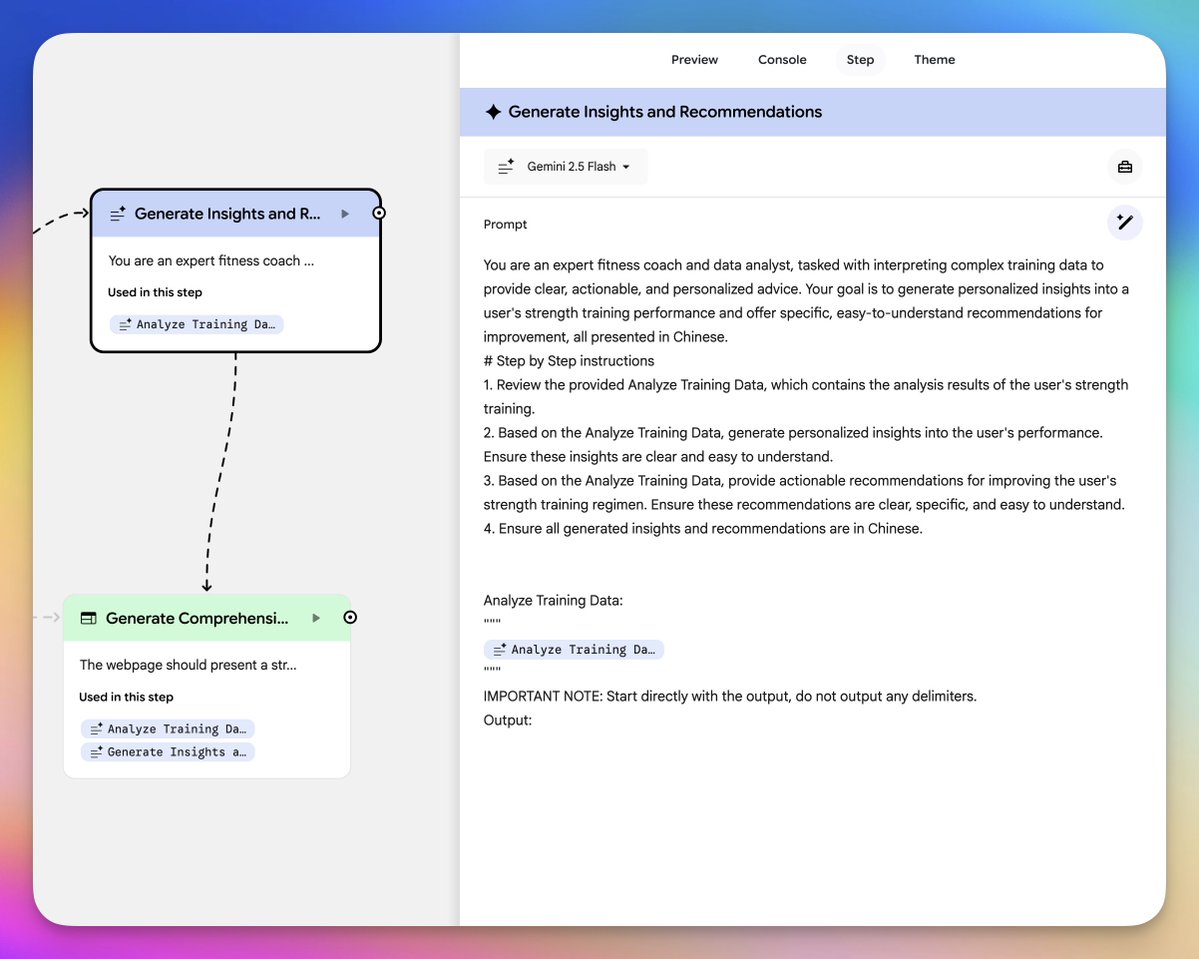
Above, you can choose which model to use. The models here are quite detailed and can basically meet any of your information processing and material generation requirements. For example, we can use the relatively inexpensive Gemini 2.5 Flash or the top-of-the-line Gemini 3 Pro to handle the input processing of text, audio, video, tables, and images. For image output, there's the Imagen 4 model, which only supports text-based images, and the Nano Banana Pro and Nano Banana models, which support modified images. There's the Veo video model for video generation, the AudioLM model for text-to-speech, and even more outrageous is the Lyria 2 music generation model. If you tell him to change it and he selected the wrong model for you, you can change it back here.

Then you can adjust the specific prompt words below. Often, the prompts written by the model itself still have some issues. You can write your own prompts here, or click the magic wand icon on the right to tell it how to change them. This will only affect the prompts here, so don't worry about it affecting other places.
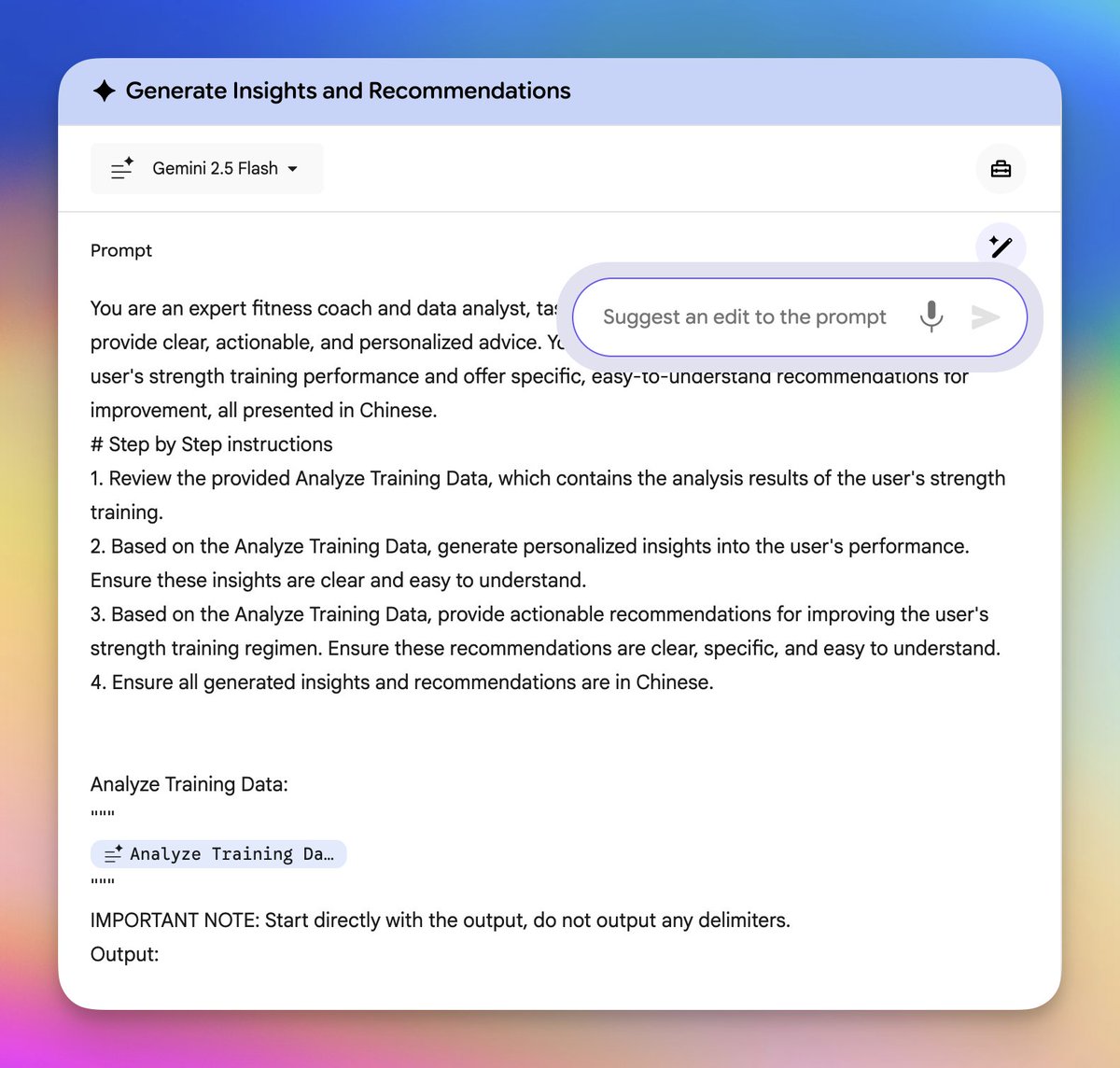
Let's look at an example. In the example I showed earlier of generating visual posters and web pages based on screen usage time, he couldn't write the image prompts well because they were complex. So I simply changed the prompts to my original image prompts in the image generation card, and then the effect was correct.

Finally, of course, is our sharing function. You can click the "Share App" button in the upper right corner to get the app's sharing link. Users who get the link can log in directly with Google to use it, and their model credit will be deducted according to their Gemini membership level.

That concludes today's tutorial on Gemini, Gem, and Opal. You can create your own to play around with,opal.google/?flow=drive:/1…screen time analysis tool. Click on Remix in the upper right corner to directly modify and edit my application: https://t.co/vYrfuru37s